
Add your photos
Start with a copied folder containing 100–300 photos. Supported photos in subfolders are included.
Learn what Gallery, Photo Search, Duplicates, Events, Sorting and History do, and start safely with a small folder.
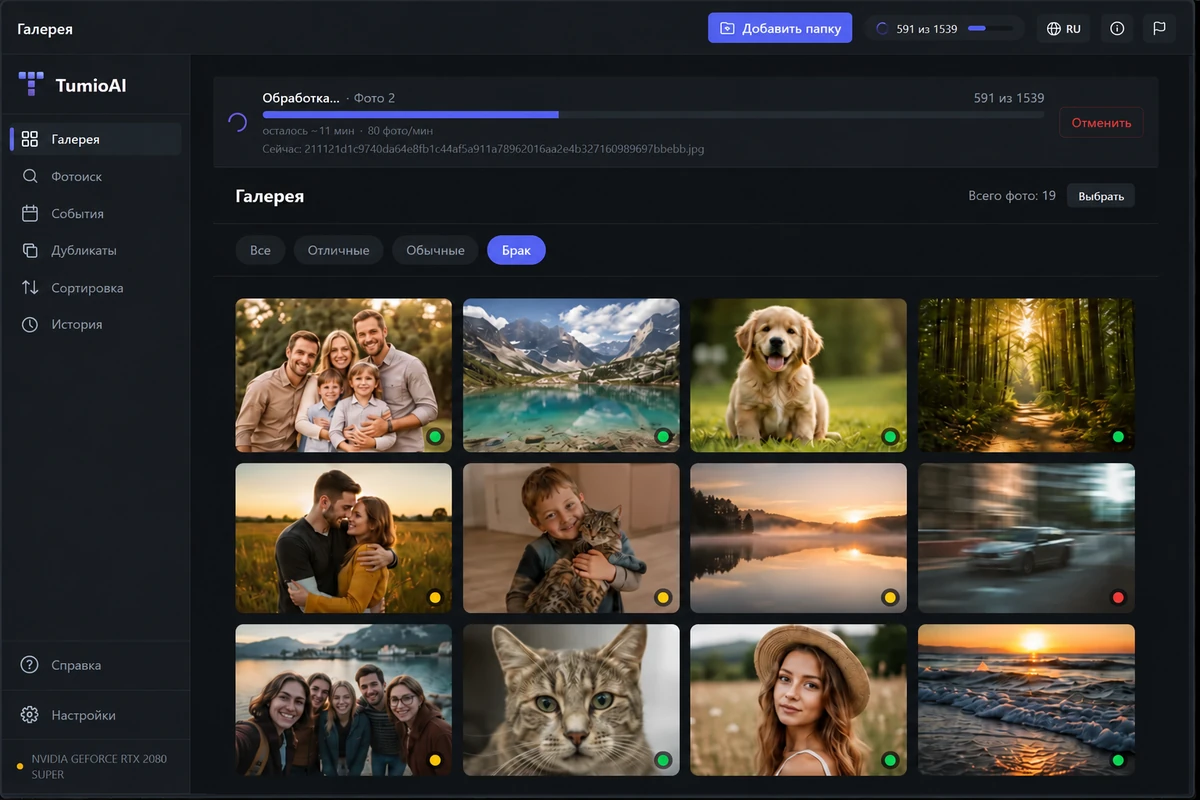
Start with a copied folder containing 100–300 photos. Supported photos in subfolders are included.
Processing stays on your computer. Time depends on your CPU, GPU and collection size.
Search, compare similar shots or prepare a sorting plan. Files move only after you confirm.
Browse all photos, filter by quality and inspect individual images. Scores are recommendations, not a deletion command.
Learn more →Describe objects, actions or a scene: “dog in the snow”. Narrow the search to a folder or import.
Learn more →Compare exact copies and similar shots before choosing what to keep.
Learn more →View your collection chronologically. Check unusual and missing capture dates.
Learn more →Prepare folders and a move plan. Check source and destination paths before confirming.
Learn more →Inspect completed operations and undo moves. Keep your own backup as well.
Learn more →Settings contains performance options, licence management and update checks. Help, above Settings in the sidebar, contains the in-app learning guide.
Open Photo Search and describe a visible scene. Try a broader phrase if necessary.
Open Duplicates, review similar photos at full size and keep the version you prefer.
Create a date-based plan, check the proposed paths and confirm only when ready.
Use a copied folder with 100–300 photos first. Wait for scanning to finish. Verify results, check the move plan and try History → Undo. Do not manually reorganise files while an operation or undo is running.